You receive a Doro, turn it on, find your contacts, and then someone in the family says: “Send me a message on WhatsApp.” That’s where the problem begins. Between the models running on Android and those equipped with KaiOS, the steps to follow are completely different, and some Doro phones simply do not allow the installation of the app.
Doro smartphone running Android or KaiOS flip phone: the sorting to do first
Before looking for WhatsApp in an app store, you must first identify the phone’s operating system. This is the starting point, and it generates the most confusion.
Recent Doro smartphones (8000 series and beyond) run on Android. They provide access to the Google Play Store and allow you to download WhatsApp just like on any other Android phone. The installation follows a standard process.
Doro flip phones like the 7080 run on KaiOS, a different system. On these models, WhatsApp is sometimes advertised as compatible, but the reality varies depending on the operator, country, and installed software version. Several Orange users have reported being unable to download the app despite the “WhatsApp compatible” mention on the product sheet. There is a real gap here between the promise and actual usage.
To check, simply go to the phone’s settings, section “About”: if you see “Android,” the path is clear. If you see “KaiOS,” it’s better to test directly from the integrated store before counting on it. A complete guide allows you to use WhatsApp on a Doro smartphone depending on the exact model.
Installing WhatsApp on a Doro Android without getting lost in the Play Store
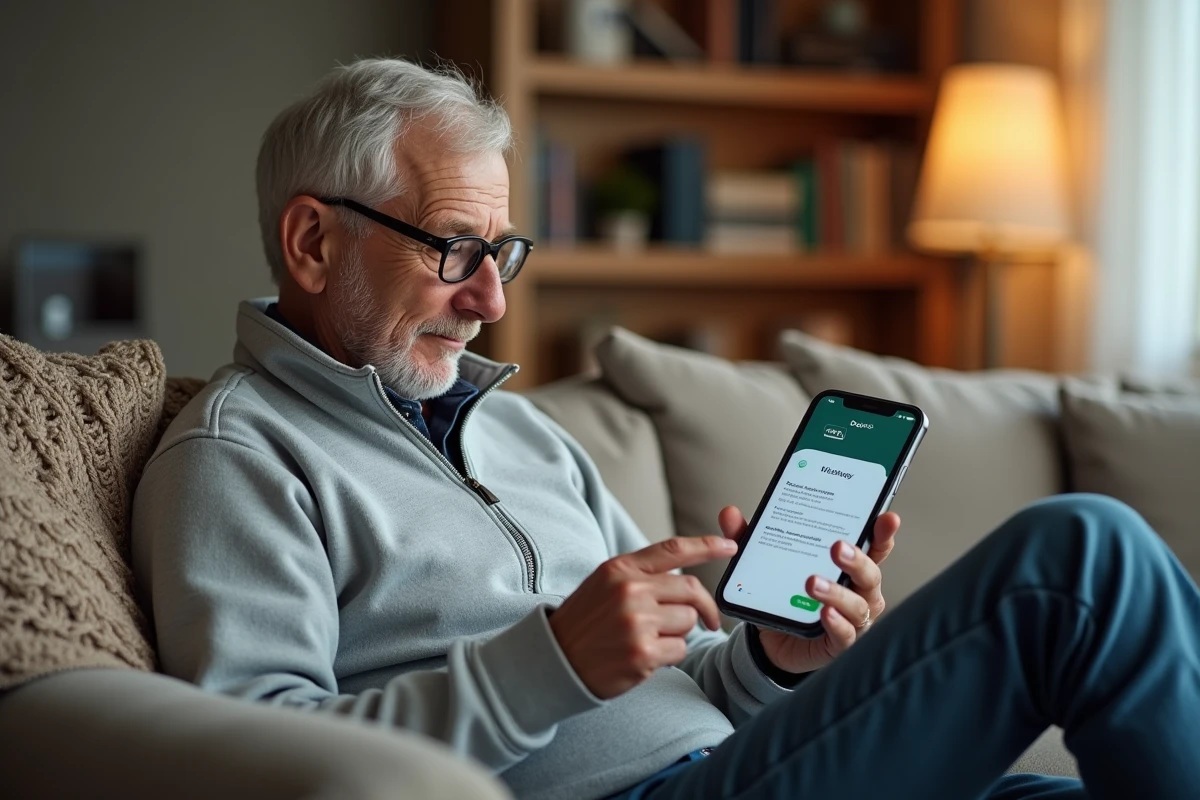
On a Doro smartphone running Android, the home screen is simplified. The icons are large, and the menus are reduced. The Play Store is still accessible, and that’s the way to go.
- Open the Play Store from the home screen (icon shaped like a colored triangle). If you can’t find it, swipe up to display all applications.
- Type “WhatsApp” in the search bar at the top of the screen. Select the first result published by “WhatsApp LLC,” then tap “Install.”
- Once the installation is complete, open the app. It asks for a phone number: enter the one from the SIM card inserted in the Doro. A verification code arrives via SMS, and WhatsApp detects it automatically on most recent models.
- Enter a display name (first name is sufficient). The profile picture is optional at this stage.
Once the app is open, the contacts from the phone who already use WhatsApp appear in the list. No need to add them manually.
Adjusting text size in WhatsApp
The Doro interface already enlarges system elements, but WhatsApp has its own size settings. In the app, go to Settings, then Chats, then Font Size, and choose “Large.” This setting, distinct from that of the phone, often goes unnoticed, and it’s the first thing to do after installation.
WhatsApp privacy settings tailored for senior users
The default settings of WhatsApp are not designed for an audience vulnerable to unsolicited calls and messages. A few adjustments in the “Privacy” section make a big difference.
Open WhatsApp, tap the three dots in the top right corner, then “Settings,” then “Privacy.” Three settings deserve special attention:
- Profile photo: change from “Everyone” to “My Contacts.” This prevents strangers from retrieving the photo, a classic vector for identity theft scams.
- Last seen: disabling it removes the social pressure of “he read my message but isn’t responding” and limits the information visible to unknown numbers.
- Groups: choose “My Contacts” instead of “Everyone.” Without this setting, any number can add the phone to a group, including advertising or fraudulent groups.
These settings are almost never mentioned in standard installation guides, yet they directly concern the daily security of the device.
WhatsApp video calls on Doro: what works and what doesn’t
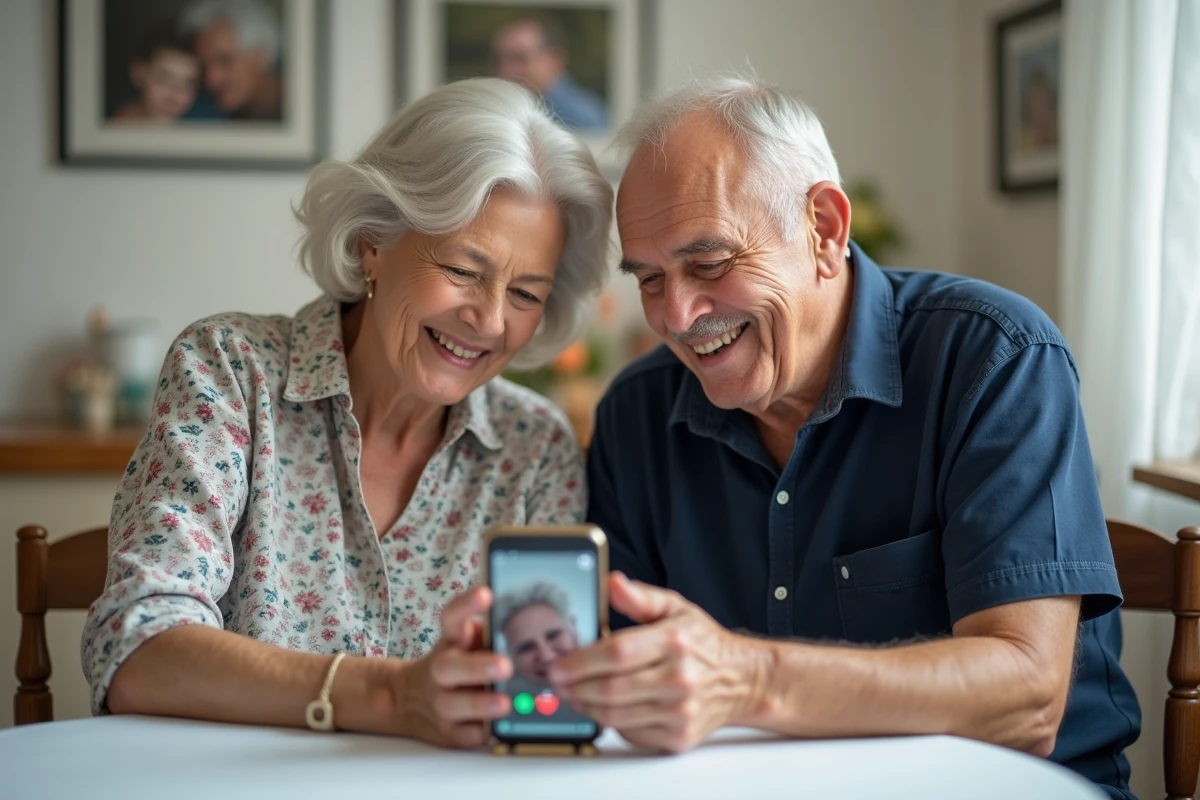
The video call remains the most requested feature by families. On a Doro running Android, it works like on any other smartphone: open a conversation, tap the camera icon in the top right corner.
In practice, the quality depends on two factors. The first is the connection: a WhatsApp video call consumes much more data than a voice call. On a limited plan, prioritizing home Wi-Fi avoids unpleasant surprises at the end of the month. The second factor is the processor power: on entry-level models, the image may stutter if other applications are running in the background.
To limit slowdowns, close open applications before starting a video call. On recent Doro models, a long press on the navigation button displays the active applications and allows you to swipe them away one by one.
The Doro smartphone academy as a complementary resource
Doro offers video tutorials dedicated to WhatsApp in its “Smartphone Academy” section, covering installation, video calls, and sending attachments. These visual guides are regularly updated and designed for an audience that prefers to see the manipulations rather than read written instructions.
The combination of a Doro running Android with the right privacy settings and a stable Wi-Fi connection covers the vast majority of needs: text messages, family photos, video calls. For KaiOS flip models, feedback varies depending on operator configurations, and caution is advisable before purchase.